
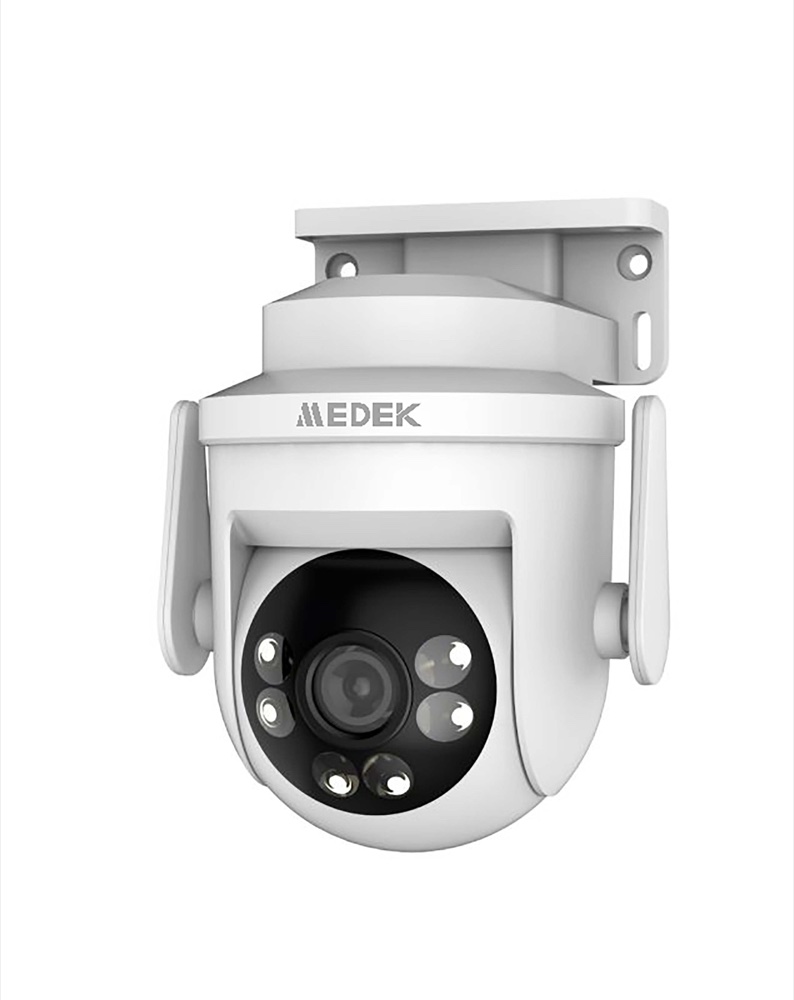
Outdoor WiFi Surveillance Camera
User manual — Outdoor WiFi Surveillance Camera (reference MDKCAMEX, barcode 3700902210244), available for download in French and English. You'll also find its technical specifications, a video and 15 frequently asked questions here.
- Model
- MDCE0126NPSKU MDKCAMEX
- Barcode (EAN)
- 3700902210244
User manual
- Manual for MDCE0126NPFrançaisPDF · 20 pp. · 2.4 MoDownload →
- Manual for MDCE0126NPEnglishPDF · 20 pp. · 2.1 MoDownload →
Specifications
Connectivity
- Connectivity
- Wi-Fi · Bluetooth
Tutorials & troubleshooting
Frequently Asked Questions
Does the camera work on 5 GHz WiFi?+
No. The camera only supports 2.4 GHz WiFi. Before pairing, make sure your phone is properly connected to your home WiFi network on 2.4 GHz.
My camera won't connect / I don't hear the voice prompt, what should I do?+
After powering on, wait for the camera to play the voice prompt "Welcome to the smart camera." If you don't hear it, hold down the Reset button for 5 seconds to restore the factory settings, then restart pairing.
What pairing methods are available if Bluetooth fails?+
You can pair the camera via Bluetooth, by QR code (your phone displays a QR code that the camera scans), via hotspot (the camera's "Cloud_…" WiFi network), or via an Ethernet cable. If Bluetooth fails, try QR code setup or hotspot setup.
Can I install the camera outdoors without protection?+
Do not install it outdoors unprotected or directly exposed to rain, snow, or frost. It is recommended to install it under an eave or in a protective housing, angled slightly downward.
How do I keep the connections watertight?+
Use the supplied waterproofing kit: fit the waterproof cap over the Ethernet port before use and thread the cable through this cap. Avoid any water at the connectors on the back of the appliance.
Which power adapter should I use?+
Use only the manufacturer's original adapter (JYYN brand, 12V - 1A output) plugged into the power port on the back. A voice prompt confirms that the camera is powered on.
Where do I insert the microSD card for local recording?+
The camera has a microSD card slot located underneath it, allowing for local recording. Insert the card there to store videos.
How do I reset the camera to its factory settings?+
Insert the supplied metal pin into the reset hole and hold down the Reset button for 5 seconds. The camera will then return to its factory settings.
Where can I install my outdoor camera?+
Do not place it outdoors without protection: it must not be directly exposed to rain, snow or hail. Choose a location under an awning, an eave, a balcony, or in a dedicated protective housing. Also avoid spraying water onto the device, whether from below or at an angle.
Is the waterproofing kit really mandatory?+
Yes: the waterproof cap must always be fitted before use, otherwise moisture will seep into the electronic circuits and cause irreversible damage. Place the sealing ring onto the camera's network socket, thread the kit onto the cable, connect the cable to the socket, then tighten the kit at the socket.
What surface can I mount the camera on?+
The wall or ceiling chosen must be able to support at least three times the weight of the camera. Both wall mounting and ceiling mounting are possible: drill holes, insert the wall plugs then screw on the mount. On a wooden wall, wall plugs are not needed.
Adding the camera via Bluetooth fails, what else can I do?+
If Bluetooth setup does not work, try QR code setup: the app displays a code that you hold up in front of the lens until you hear a beep from the camera. If that also fails, use hotspot setup instead.
On iPhone, hotspot setup doesn't start, what should I do?+
On iOS, the app cannot join the camera's hotspot automatically. Go to your phone's Wi-Fi settings and manually connect to the network named “Cloud_” followed by a few characters. Then go back to the app to finish adding the device.
I've plugged the camera in via Ethernet but it says nothing, what should I do?+
Once the power and network cable are plugged in, the camera should announce that it is waiting for setup from the mobile app. If you do not hear this message, hold down the Reset button for 5 seconds to restore factory settings. Then add the device in the app by scanning the QR code on the label, and select “Ethernet setup”.
My camera can't find my Wi-Fi network, why?+
The camera works on the 2.4 GHz Wi-Fi band. During setup, make sure to select your router's 2.4 GHz network and enter the corresponding password. The eye-shaped icon in the app lets you reveal the password to check it is correct.